Mailer-Daemon Errors: What They Mean & How to Fix Them
Arnav Jalan
email marketing
Mailer-Daemon Errors: What They Mean & How to Fix Them
A mailer-daemon email is an automated message telling you that something you sent could not be delivered. It is not a virus, and in most cases it is not spam. It is the mail server's way of returning your message with a note explaining what went wrong. This guide explains what the mailer-daemon is, how to read the bounce codes it sends, how to fix the underlying problem in Gmail and Outlook, and what to do when you receive bounces for emails you never sent.
What Does Mailer-Daemon Mean?
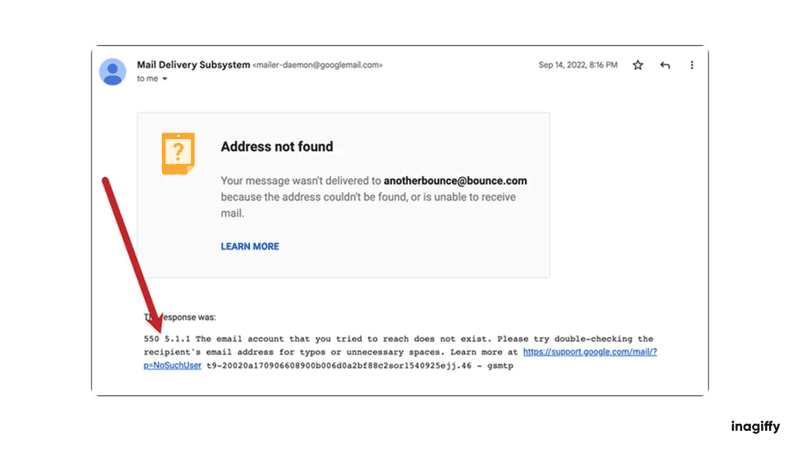
A daemon is a background program that runs on a server and handles routine jobs without human input. The mailer-daemon is the program responsible for routing email. When it cannot deliver a message, it generates a non-delivery report, often called a bounce, and sends it back to the address that sent the original email. That is why the sender name on these messages usually reads "Mail Delivery Subsystem", "Mailer-Daemon@" followed by a domain, or "Postmaster".
Bounces come in two forms. A hard bounce is permanent: the address does not exist, the domain is wrong, or the receiving server has refused the message outright. A soft bounce is temporary: the mailbox is full, the server is busy, or the message is too large. Hard bounces will repeat every time you send to that address. Soft bounces often resolve on their own within a day or two.
Common Mailer-Daemon Bounce Codes and Reasons
Most bounce messages include a three-digit SMTP code that tells you the category of the failure. Codes starting with 4 are temporary; codes starting with 5 are permanent.
Code | Meaning | Type |
|---|---|---|
421 | Receiving server temporarily unavailable; try again later | Soft |
450 | Mailbox busy or temporarily unavailable | Soft |
451 | Local error on the receiving server; message not processed | Soft |
452 | Insufficient storage; the recipient's mailbox is full | Soft |
550 5.1.1 | User unknown; the address does not exist | Hard |
550 5.7.1 | Message rejected by policy, often a spam or authentication block | Hard |
552 | Message exceeds size limits or mailbox quota | Hard/Soft |
553 | Invalid or malformed recipient address | Hard |
554 | Transaction failed; often flagged as spam or blocklisted | Hard |
The plain-language reasons behind these codes are usually one of the following: a typo in the address, an account that has been closed, a full inbox, an attachment that is too large, a temporary outage at the receiving server, or a spam filter or blocklist rejecting your message.
How to Fix Mailer-Daemon Errors
How to Fix Mailer-Daemon Errors in Gmail
Check the address. Read the bounce carefully; it quotes the exact address that failed. Fix typos such as .con instead of .com and resend.
Reduce attachment size. Gmail rejects messages over 25 MB. Use a Google Drive link instead of attaching large files.
Watch your sending limits. Free Gmail accounts have a daily sending cap. If you hit it, you will see bounces until the limit resets, usually within 24 hours.
Fix authentication if you send from your own domain. Since 2024, Gmail requires bulk senders to authenticate with SPF, DKIM, and DMARC. A 550 5.7.1 rejection frequently points to missing or misconfigured DNS records. Google Postmaster Tools shows how Gmail rates your domain.
Wait and retry for 4xx codes. Temporary failures usually clear on their own; Gmail retries automatically for a period before giving up.
How to Fix Mailer-Daemon Errors in Outlook
Verify the recipient address against the one quoted in the non-delivery report, and remove any spaces or stray characters.
Check attachment limits. Outlook.com and most Exchange servers cap message size; use OneDrive links for large files.
Review your blocked and safe sender lists. If the recipient replied that they never received your mail, ask them to check their junk folder and add you as a safe sender.
Check SMTP settings if you use Outlook as a desktop client with another provider. Wrong outgoing server details produce immediate bounces.
Request delisting if your IP or domain is blocked. Microsoft rejections often include a link or code in the bounce text. Its sender support forms let legitimate senders request removal from Outlook's blocklists.
How to Stop Mailer-Daemon Emails
If you send email at any volume, the goal is to prevent bounces rather than react to them. These habits stop most mailer-daemon messages before they happen:
Verify addresses before you send. Use double opt-in on signup forms so mistyped or fake addresses never enter your list.
Remove hard bounces immediately. Repeatedly sending to dead addresses tells mailbox providers you do not manage your list, which damages sender reputation.
Retry soft bounces, then cut them. If an address soft-bounces across several consecutive sends, treat it as gone.
Never buy lists. Purchased lists are full of dead addresses and spam traps, and they generate bounce storms that can get a domain blocklisted.
Authenticate your domain. SPF, DKIM, and DMARC are now baseline requirements at Gmail, Yahoo, and Microsoft for anyone sending in volume.
Keep an eye on engagement. Bounce rate is one signal among several; our guide to email deliverability covers the full picture, from warm-up to inbox placement.
Mailer-Daemon Text Message — What It Means
Some people receive what looks like a mailer-daemon notice as a text message. This usually happens for one of two reasons. First, if someone emails a phone number through a carrier's email-to-SMS gateway and the message cannot be delivered, the bounce can surface in unexpected places; several carriers have retired these gateways entirely, so messages to them now fail. Second, and more commonly, scammers send fake "delivery failure" texts that imitate mailer-daemon language to make you tap a link. A real mailer-daemon never contacts you by SMS about an email you sent. If a text claims a message of yours bounced and asks you to click through or confirm details, delete it.
Mailer-Daemon Spam & Spoofing
Receiving bounces for emails you never sent is a known phenomenon called backscatter. Spammers forge random real addresses, sometimes yours, into the From field of their campaigns. When those spam messages bounce, the non-delivery reports go to the forged address instead of the spammer. It looks alarming, but it does not necessarily mean your account was hacked.
What to do when it happens:
Check your Sent folder. If the bounced messages are not there, your account most likely was not used to send them.
Change your password and turn on two-factor authentication anyway. If your account was compromised, this cuts off access.
Do not click links inside the bounce messages. Some fake bounces are themselves phishing attempts carrying malicious attachments.
If you own the domain, publish a DMARC policy. Moving from p=none to p=quarantine or p=reject tells receiving servers to drop mail that fails authentication, which sharply reduces how useful your domain is to spoofers.
Wait it out. Backscatter waves typically fade within days as the spammer rotates to other forged addresses.
What Bounces Mean for Newsletter Senders
For a personal account, a mailer-daemon message is a one-off annoyance. For a newsletter program, bounce handling is an operating discipline. Mailbox providers judge senders on complaint rates, bounce rates, and engagement, and a rising bounce rate is one of the earliest signs of list decay. Separate hard from soft bounces in your reporting, suppress hard bounces automatically, and review bounce trends alongside your other newsletter KPIs each month. If bounces spike after a specific campaign, check what changed: a new acquisition source, an old segment reactivated, or a sending domain change are the usual suspects. Deliverability work belongs in your newsletter strategy from day one, not as a cleanup project after inboxing drops.
Frequently Asked Questions
Why do I keep getting mailer-daemon emails?
Either you are sending to addresses that no longer work, or spammers are forging your address and you are receiving backscatter. Check whether the bounced messages appear in your Sent folder to tell the two apart.
Is mailer-daemon a virus?
No. The mailer-daemon is a legitimate server program that reports delivery failures. However, fake bounce messages that carry malicious links or attachments do exist, so avoid clicking anything inside a bounce you were not expecting.
Can I reply to a mailer-daemon email?
No. The address is automated and unmonitored. Replies go nowhere. Fix the issue described in the bounce and resend your original message to the corrected address.
What is the difference between a hard bounce and a soft bounce?
A hard bounce is permanent, such as an address that does not exist, and the address should be removed from your list. A soft bounce is temporary, such as a full mailbox or a busy server, and usually resolves within a couple of days.
How do I stop mailer-daemon spam for emails I never sent?
Secure your account with a new password and two-factor authentication, and if you control the sending domain, publish SPF, DKIM, and a DMARC policy of quarantine or reject. Backscatter aimed at forged addresses generally stops on its own once the spam run ends.
Inagiffy runs newsletters end to end for brands like Motilal Oswal, Decathlon, and PolicyBazaar, sending over 500 million emails a year with deliverability handled as a core discipline, not an afterthought. If bounces, blocklists, or inbox placement are eating your team's time, see how Inagiffy can help.